Login
Your link will open in a new tab
If this has not happened, please click here

As HR and Health & Safety professionals, we noticed a significant gap in the market, and more importantly employer’s knowledge of effective business administration and regulations, plus the need for businesses to digitalise the HR and Health & Safety management process.
 oneHR
oneHRRemove the HR management headache
oneSAFEMake Health & Safety compliance seamless
oneHR oneSAFE oneHR Back oneSAFE Back test BackIf this has not happened, please click here

This is a guide for Admins and Managers who are looking to add leave and/or absence for their employees.
Updated over a week ago
As an admin or manager, you have the ability to add leave and absence for employees that fall under your level of authority on oneHR.
To do this, start by heading into the Leave section from the main oneHR menu.
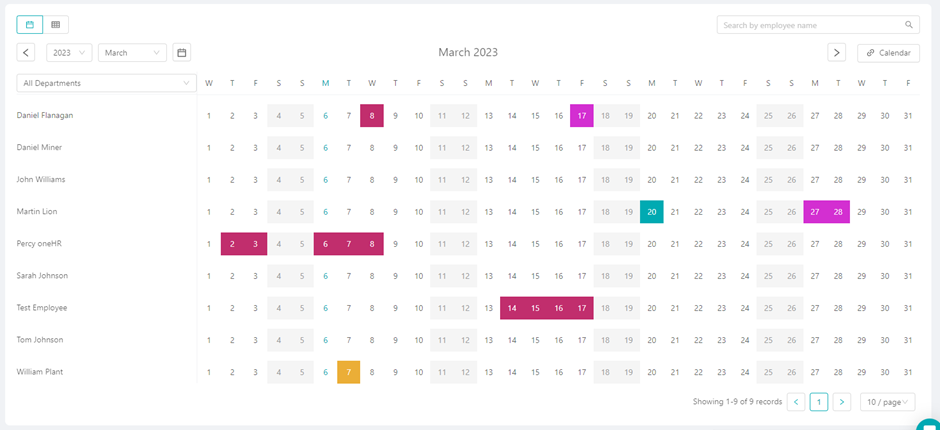
On the leave calendar, you will see a list of employees on the left and their corresponding leave in a row to the right.
To add a leave or absence record for an employee, start by clicking on the date that this leave or absence instance starts on.
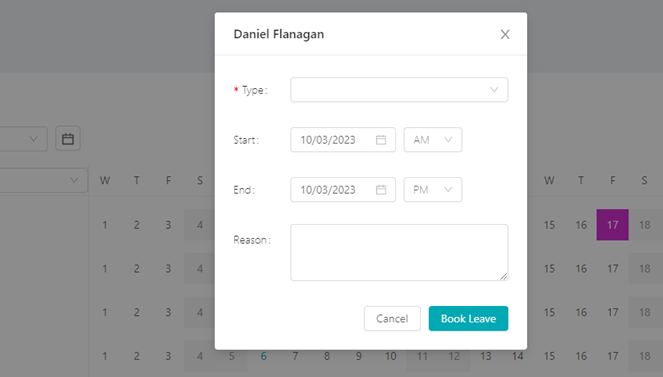
You will then be prompted to select a leave type (if you haven’t yet set up your leave types, you can find a guide on how to do so here), add a start and end date and if required/desired, enter a reason for this leave or absence.
Once you are happy with this information that has been entered, click on the ‘Book Leave’ button and this will now be assigned to this employee and added to the calendar.

February 23, 2023
To add a Custom Section on oneHR, start by clicking on the Admin option from the main left-hand side menu....
Read more about Adding a Custom Section
February 23, 2023
To add a new Bank Holiday on oneHR, start by clicking on the Admin option from the main left-hand side...
Read more about Adding a Bank Holiday
May 15, 2023
To add a Custom Section on oneHR, start by clicking on the Admin option from the main left-hand side menu....
Read more about Creating a Custom Section
May 15, 2023
When an employee has left your organization and you want to archive them and remove access, we start this process...
Read more about Archiving an Employee