Login
Your link will open in a new tab
If this has not happened, please click here

As HR and Health & Safety professionals, we noticed a significant gap in the market, and more importantly employer’s knowledge of effective business administration and regulations, plus the need for businesses to digitalise the HR and Health & Safety management process.
 oneHR
oneHRRemove the HR management headache
oneSAFEMake Health & Safety compliance seamless
oneHR oneSAFE oneHR Back oneSAFE Back test BackIf this has not happened, please click here

To add a Custom Section on oneHR, start by clicking on the Admin option from the main left-hand side menu.
Within the Admin section, you will see an option entitled ‘Employee Sections’. When clicking on this option you will see you are presented with the option to create a new custom section, along with a list of pre-existing custom sections.
Custom Sections will appear as additional menu items on an employee profile.
When setting up a custom section you are presented with two format options, Single and Multi.
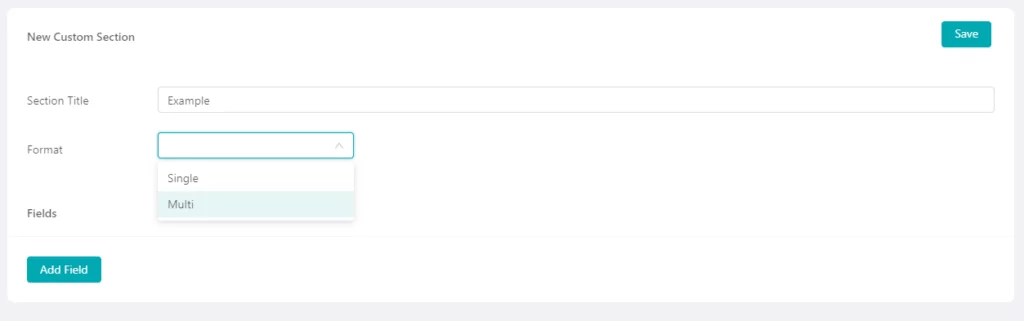
A Single formatted custom section is a static form, much like the employee contact details section. Within this type of custom section, you set up a selection of fields, users can populate these fields and as and when the data changes, they can overwrite and update these fields.
A Multi formatted custom section allows us to make multiple entries against the set fields, using the likes of Lateness as an example, every time an employee is late, we can add a record to the section, filling in the fields, with this record then being added to a continuous list.
Once we have selected our section type, we are then required to add our fields. You are able to add as many or as few fields as needed within this section dependent on what information needs to be captured.
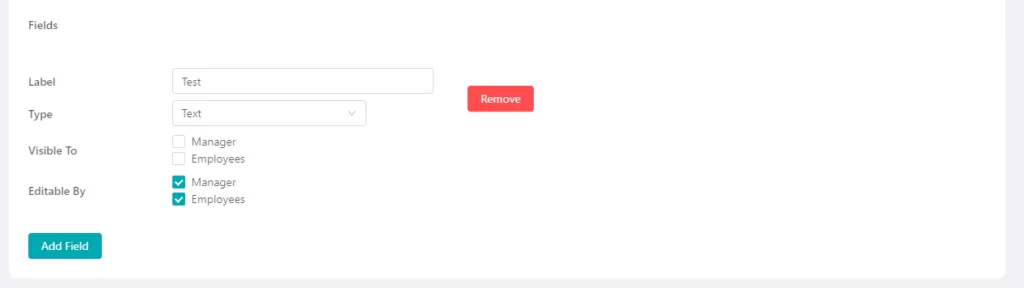
We are prompted to give our field a title and then select the field type. There are a number of field types that we can choose from, these are:
Text – A simple one-line text box.
Multi line text – A larger text box, allowing you to add multiple lines of information.
Checkbox – A simple checkbox alongside the field title.
File – An option to upload a file/document.
Date – An option to select and capture a date.
Once a field has been created you then have the option to choose who can edit the contents of the field and also who it is visible to. This provides you with the ability to give some control and ownership to the employees themselves or you can retain access to managers and admins only.
You then have the ability to add as many additional fields as required.
Once all fields have been set up, you can scroll back up to the top of the page and save the new custom section. It will then be added to the list of existing sections and will also appear against employee profiles.
From the Admin section, you will also have the ability to remove custom sections if they are no longer relevant or needed.

May 15, 2023
When an employee has left your organization and you want to archive them and remove access, we start this process...
Read more about Archiving an Employee
May 15, 2023
To create a task for an employee on oneHR, start by navigating to the Task page from the main oneHR...
Read more about Creating a Task
May 15, 2023
To update an employee's leave entitlement, you will first need to navigate to their employee record. Start by clicking into...
Read more about Updating Leave Allowances
February 23, 2023
To add a Custom Section on oneHR, start by clicking on the Admin option from the main left-hand side menu....
Read more about Adding a Custom Section