Login
Your link will open in a new tab
If this has not happened, please click here

As HR and Health & Safety professionals, we noticed a significant gap in the market, and more importantly employer’s knowledge of effective business administration and regulations, plus the need for businesses to digitalise the HR and Health & Safety management process.
 oneHR
oneHRRemove the HR management headache
oneSAFEMake Health & Safety compliance seamless
oneHR oneSAFE oneHR Back oneSAFE Back test BackIf this has not happened, please click here

To mark a task as complete, start by heading into the Task section by clicking on the Tasks option from the main oneHR menu.
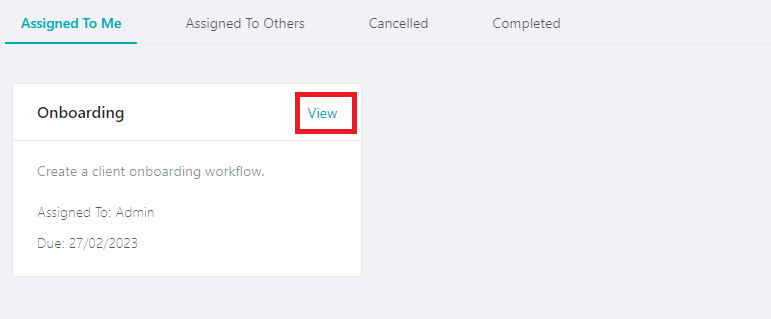
You will be presented with the tasks that have been assigned to you as a user.
In the upper corner of each task, you will see a ‘view’ link. If you click this, you will see an overview of the task details and at the bottom, you will find an option to mark it as complete.
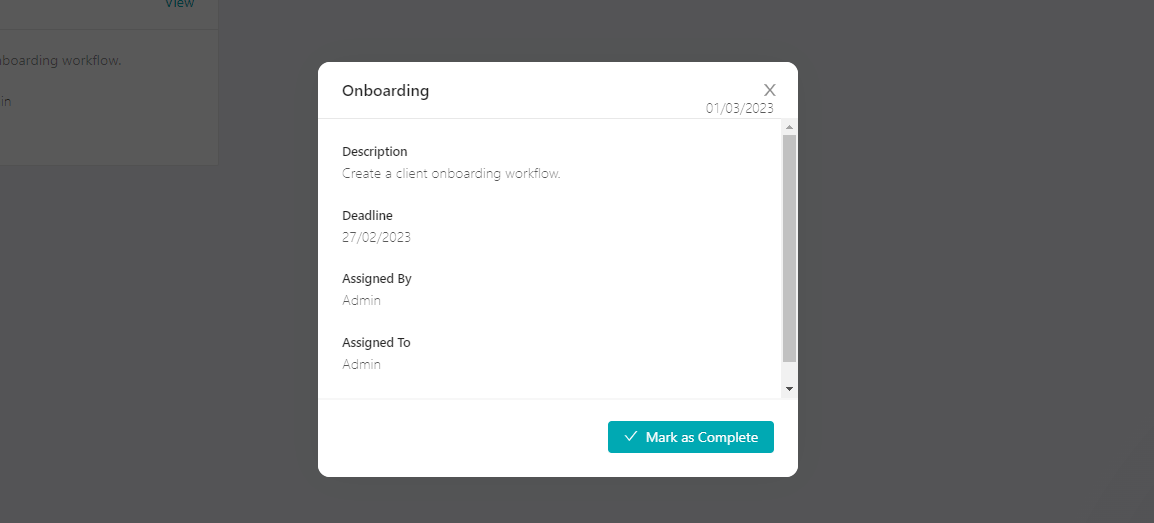
Once marked as complete, your assigned department manager will receive notification of this action.

May 15, 2023
To add a new Department on oneHR, start by clicking on the Admin option from the main left-hand side menu....
Read more about Setting up Departments
February 23, 2023
To add a new Bank Holiday on oneHR, start by clicking on the Admin option from the main left-hand side...
Read more about Adding a Bank Holiday
May 15, 2023
When an employee has left your organization and you want to archive them and remove access, we start this process...
Read more about Archiving an Employee
May 15, 2023
This is a guide for Admins and Managers who are looking to add leave and/or absence for their employees. Updated...
Read more about Adding Leave and Absence